Static Analysis
Drag and drop EXE into PeStudio:
ws2_32.dll use for internet connection.

Check on the Imported Symbols, able to notice that the EXE file will perform file creation, write file, registry key creation and network connection.

Next will check on the strings. Under Unclassified, notice huge unknown strings in rdata section.

More suspicious strings are found such as unknown vbs script, base64 encoder strings and registry key.

Now let's use Strings from Sysinternals to dump the strings in the EXE file.

Notice that some strings are not found in PeStudio appeared. The IP addresses and wscript.exe /B.

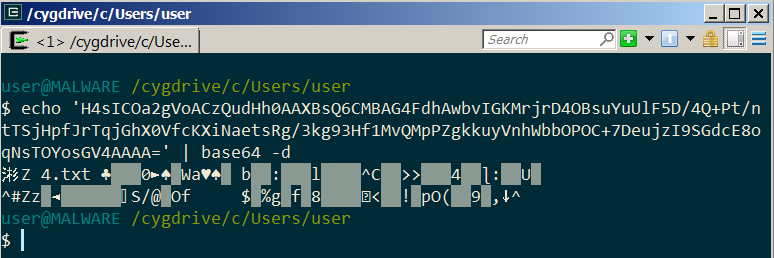
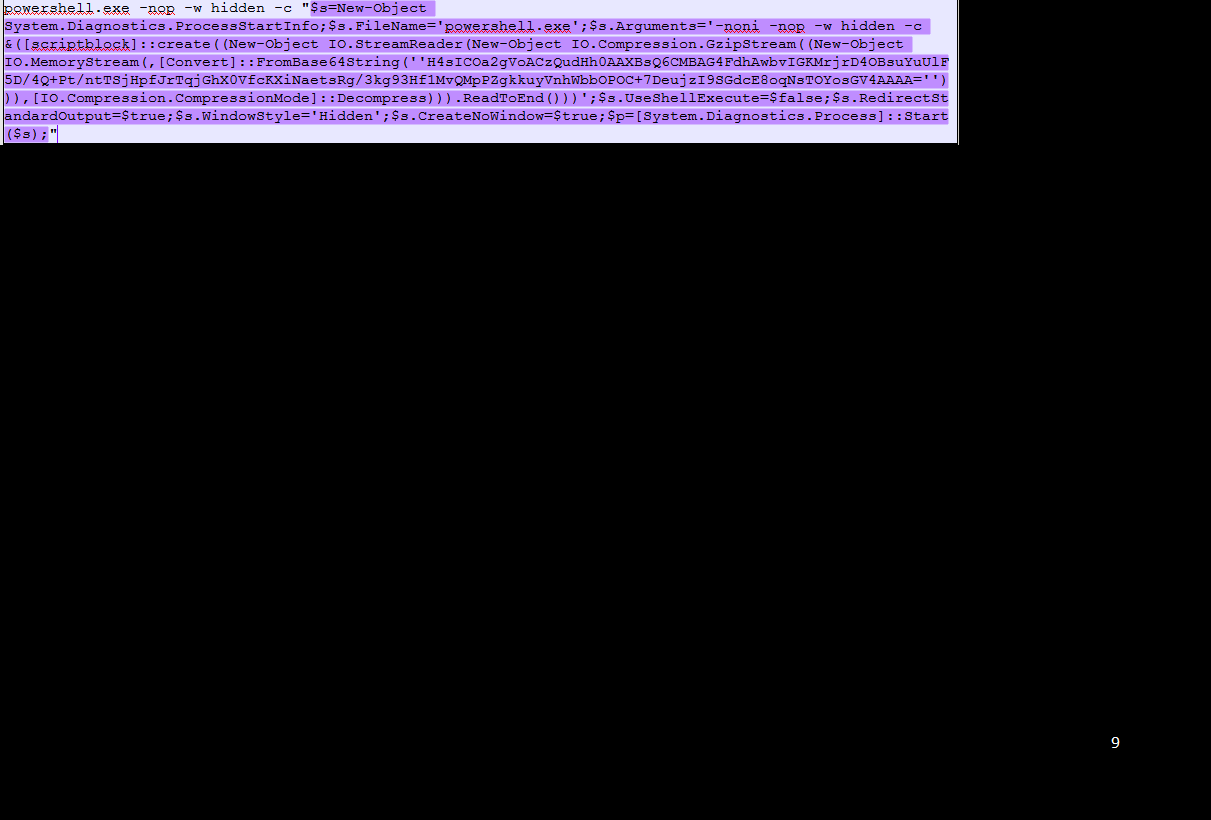
Notice that the unknown long strings, let's try to decode it using base64. The decoded strings are VBS script. The script create Task Scheduler with PowerShell execution. PowerShell will obtain malicious PowerShell from new created registry.

Dynamic Analysis
Run the EXE in Sandoxie and BSA:
First try without internet connection, the EXE exit if there's no internet connection.


Run the EXE in Sandoxie and BSA with internet connection reveals the malicious activities of the EXE file.
It checks internet connection multiple times before perform more malicious activities.
First, it checks for internet connection to 172.217.31.46. If successful it will create a file name called "unknown.vbs" located at Documents folder.
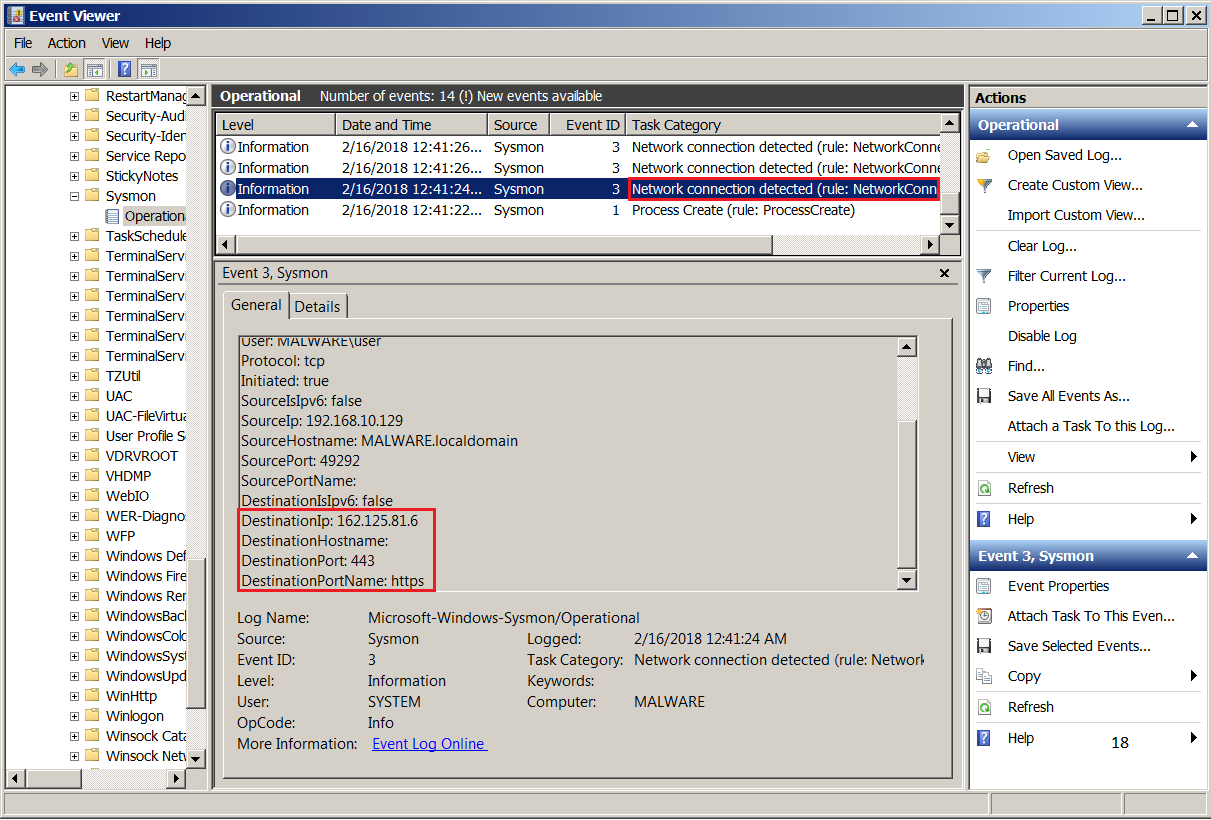
Second, it checks for internet connection to 162.125.248.1 and 52.74.223.119. If successful it will execute VBS script using wscript.
Final, it executes cmd and create a Task Scheduler to execute PowerShell.


Get information about the IP addresses.


With the dynamic analysis information, we now know what is the activities will perform by the EXE.
Advanced Static Analysis
Open the EXE in x32dbg then press F9 to run single time on the EXE to directly takes us to the main function. After that find the string references on the current module.

Now let's follow the disassembler by right click on the IP address.

On the disassembler, right click or press G to view in graph mode.


Press O or right click to view in Overview mode.


Click on the CPU tab to move back into disassembler view. Perform analysis on the call instructions by follow in disassembler and graph view.


Spot the SHGetFolderPath API called. By checking on MSDN and googling around for the CSIDL, conclude that it is hex 0x5 CSIDL_PERSONAL that will point to current user document path.


Following the execute path in the graph, CreateFile and WriteFile API were called.

Return to disassembler view in CPU tab, insert comment by pressing ";". The edi contain the file name which is unknown.vbs.

Continue to WriteFile API called.

Return back to the main function by pressing "-" then move on to the next call instruction. In here the address is 0xFD1900. SHGetFolderPath appeared again with unknown.vbs. Suspecting it tries to get the unknown.vbs file path.

Return back to main function by pressing "-", notice that the compare instruction that will compare whether the unknown.vbs file existence. If file not found then quit.
If file exits, it will check for network connection to 162.125.2481 before proceed to a call function.
Inside 0xFD1720, there are two long unknown strings being push to the stack. We can follow the long unknown strings in dump.


The following image is after finished analyzed the call instruction and included comments.


Advanced Dynamic Analysis
Set breakpoint using F2 to get a more detailed understand on what happened before and after the call instruction.

Press F9 to run once. Notice that the unknown.vbs script has created in My Documents folder.

Press F9 again. Notice that new registry key and data has been created.

Press F9 again. Notice that in the stack contained wscript.exe /B command.

Press F9 again. Notice that the unknown.vbs script location is push to the stack.

Press F9 again. Then follow dump in EAX before it push to the stack. It is a full command will executed by system during the next call instruction.

Set a breakpoint after the system call instruction. Notice that the VBS script create a new Task Scheduler. The Task Scheduler contain PowerShell execution.

Open registry editor and copy out the registry data. Perform a base64 decode for UUID. It is a RC4 algorithm that will decrypt the content in registry data UID.


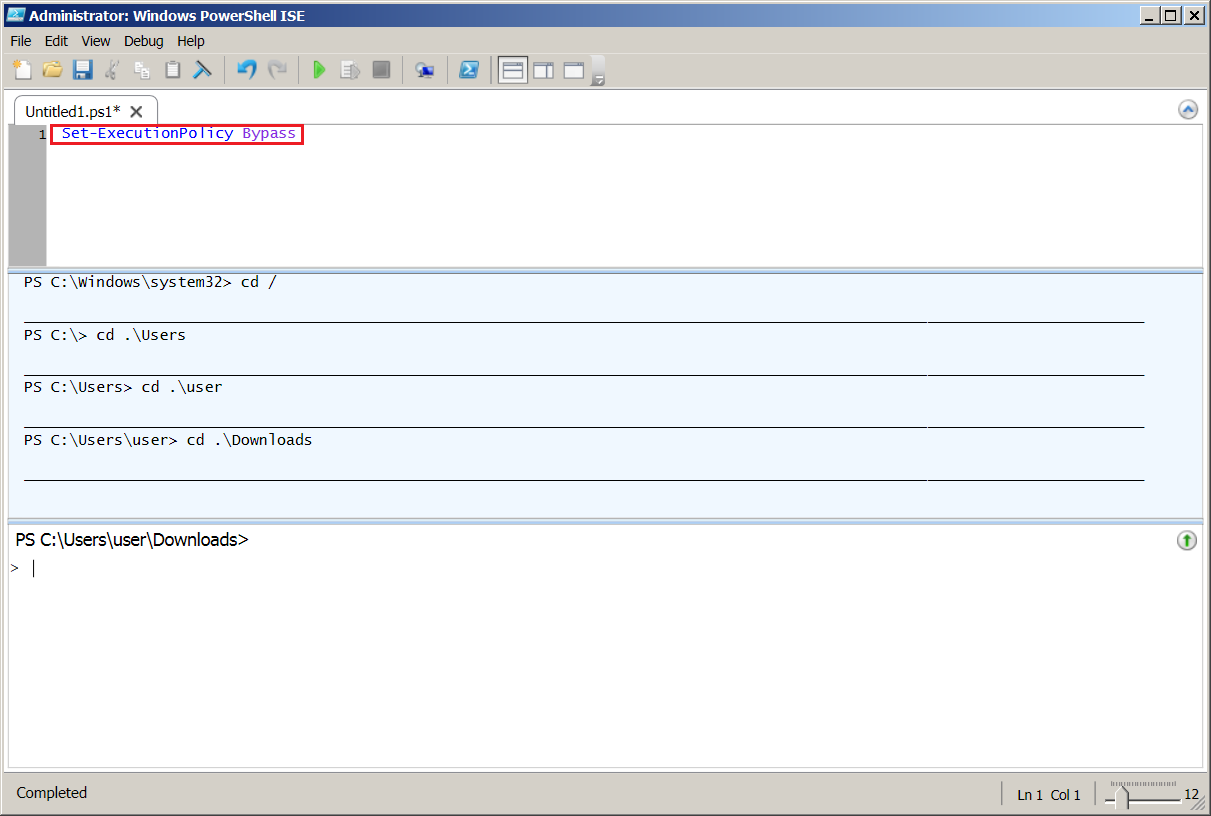
Copy the decoded PowerShell script to PowerShell ISE then edit the scrip to output the decrypted content inside registry data UID to a file.


Decode the PowerShell, it shows that it will connect back to C&C server at 34.211.199.148.
End of Just another Malware Analysis Guide (6) - Walk Through It